
IPTV for Reseller · Practical guide
Setting IPTV: 8 Essential Steps for a Smoother Setup
Setting IPTV is easier when you prepare your device, connection and player first. Follow 8 practical checks for a smoother, more reliable setup.
Start with the basics
What to Prepare Before Setting IPTV
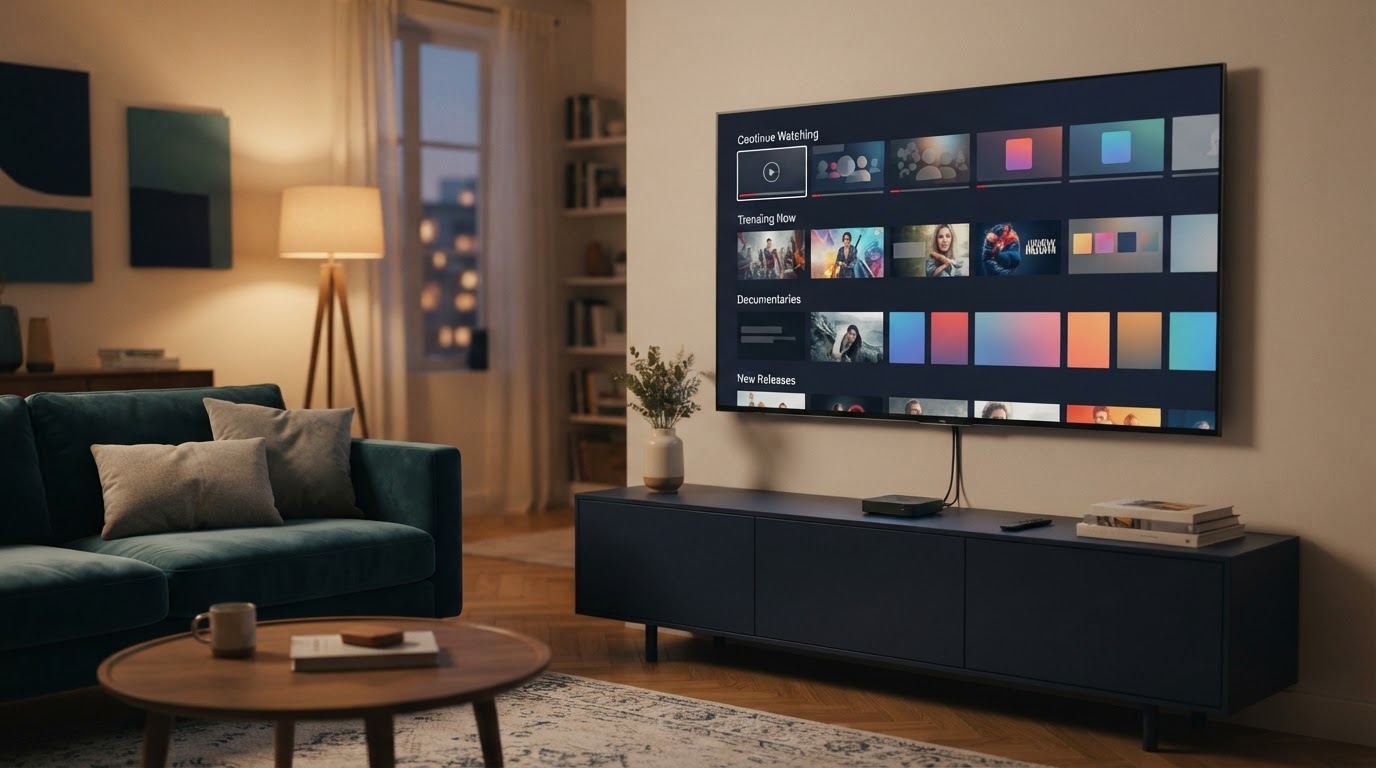
Setting IPTV is more straightforward when you prepare the television, network and player before opening an account. IPTV is a way to deliver television over an internet connection; the experience you get depends on the device, the player application and the service you choose. These parts work together, but they are not the same thing. A reliable setting IPTV routine starts by checking the device, player and service separately.
Begin by identifying your screen. A television with a built-in app store may not need extra hardware, while an older television may work better with a separate streaming device. Check the operating system and available storage, then make sure the device can receive software updates.
8 Steps for a More Reliable Setup
1. Check the device platform
Identify whether you use a Smart TV system, Android TV, Google TV, Fire TV, Apple TV or a mobile device. App availability differs between platforms, so check the store on the device itself.
2. Update the operating system
Install available system updates before setting up a player. Updates can improve compatibility, stability and security, and they reduce the chance of troubleshooting an outdated device later.
3. Test the home connection
Run a speed test near the television and repeat it at a busy time. A stable connection matters more than a single high result. If possible, place the router in an open central position.
4. Choose a suitable player
Use a player available through the device’s official app store or the developer’s official website. Compare remote-control navigation, accessibility options, guide support and update history.
5. Check the service details
Before entering account details, read the provider’s setup instructions and confirm which devices and player versions are supported. Do not assume every app accepts every connection format.
6. Enter information carefully
If the provider supplies sign-in details, follow its documented process and check every character. Avoid sharing account credentials in public messages or screenshots.
7. Review the guide and settings
Once the player is ready, check the time zone, language, accessibility settings and programme-guide display. Organise favourites only after the basic interface is working correctly.
8. Test before relying on it
Try the service at different times, check audio and picture consistency, and confirm that the player responds properly to the remote. Record any error message before contacting support.
Choose the right platform
Setting IPTV on Different Devices
The broad setup sequence is similar across devices, but the menus and app availability are different. The best setting IPTV method depends on the operating system and the app store available on that screen. On Android TV and Google TV, start with the built-in app store and the manufacturer’s setup instructions. On Fire TV, first complete the device’s normal Wi-Fi and account setup. On Apple TV, use the App Store to check which player applications are currently available in your region.
| Device type | What to check first | Common consideration |
|---|---|---|
| Smart TV | Built-in app store and operating system | Older models may have fewer current apps |
| Android / Google TV | Google Play availability and system updates | Use apps designed for television navigation |
| Fire TV | Device setup, Wi-Fi and official app sources | Menu options vary by model and software |
| Apple TV | App Store availability and current device support | Not every player has an Apple TV version |
| Phone or tablet | Screen size, app support and privacy settings | Touch controls differ from a TV remote |
For official device preparation, see Google’s Android TV setup guidance and Amazon’s Fire TV setup instructions. These resources explain device setup rather than endorsing a particular streaming provider.
Avoid common issues
Common Setup Problems and Practical Checks
If the app does not open, restart the device and check for updates. If the interface loads slowly, close unused applications and make sure the device has enough free storage. If playback pauses, compare Wi-Fi with a wired connection where supported, then check whether other devices are using the network heavily.
A blank guide does not always mean the television is faulty. Guide data may be separate from the player, may need a refresh, or may not be included in the service. Check the provider’s documentation rather than repeatedly changing settings at random.
Privacy reminder: Keep usernames, passwords and private account links confidential. Install apps from official stores or verified developer sources, and avoid unknown files or modified app packages.
Related Guides
If you are new to the technology, start with What Is IPTV?. To compare hardware, read our streaming device guide. For general plan information, see the existing IPTV Subscriptions page.
Need help checking compatibility?
If you are setting IPTV for the first time, keep the provider’s current instructions nearby and follow the steps that match your device. Have your device model and operating system ready before contacting the team. This makes it easier to confirm which setup information applies to your equipment.
Contact the teamQuick answers
Setting IPTV FAQ
Do I need a separate streaming box?
Not always. Many modern Smart TVs have app stores and compatible players. A separate device can help when the television is older or its app selection is limited.
Should I use Wi-Fi or Ethernet?
Ethernet is often more consistent when the router and device are close enough to connect. A strong Wi-Fi connection can also work well when the signal is stable.
Why is the programme guide empty?
The guide may need refreshing, may use a separate data source or may not be included by the provider. Check the app and service documentation first.
Can I use the same player on every device?
No. Some players are available only on certain operating systems. Check the official store for each device before choosing an app.