
IPTV for Reseller · Device & App Guide · UK Audience
IPTV Download: 7 Essential Checks for a Safer App Install
Looking for an IPTV download? The right app depends on your device, operating system and region. This guide explains how to find compatible player software through official app stores, check a listing before installing, and avoid unreliable download files.
Quick answer: there is no single IPTV download that works on every television or streaming device. First identify your device platform, then search its official app store for a compatible player. Check the publisher, recent updates and permissions before you install anything.
What Does IPTV Download Mean?
The phrase IPTV download is often used to describe downloading an application that can play an internet television service. It is important to separate the app from the service itself. A player is software installed on a compatible device; it does not automatically include a subscription or provide programmes by itself.
Different players support different devices and sign-in methods. Some are designed for television remotes, while others are made for phones, tablets or computers. A mobile version is not necessarily compatible with a Smart TV, even when both devices share the same brand.
If you are new to the technology, begin with our guide explaining what IPTV is. It helps clarify the difference between the delivery technology, the player application and the service you choose.
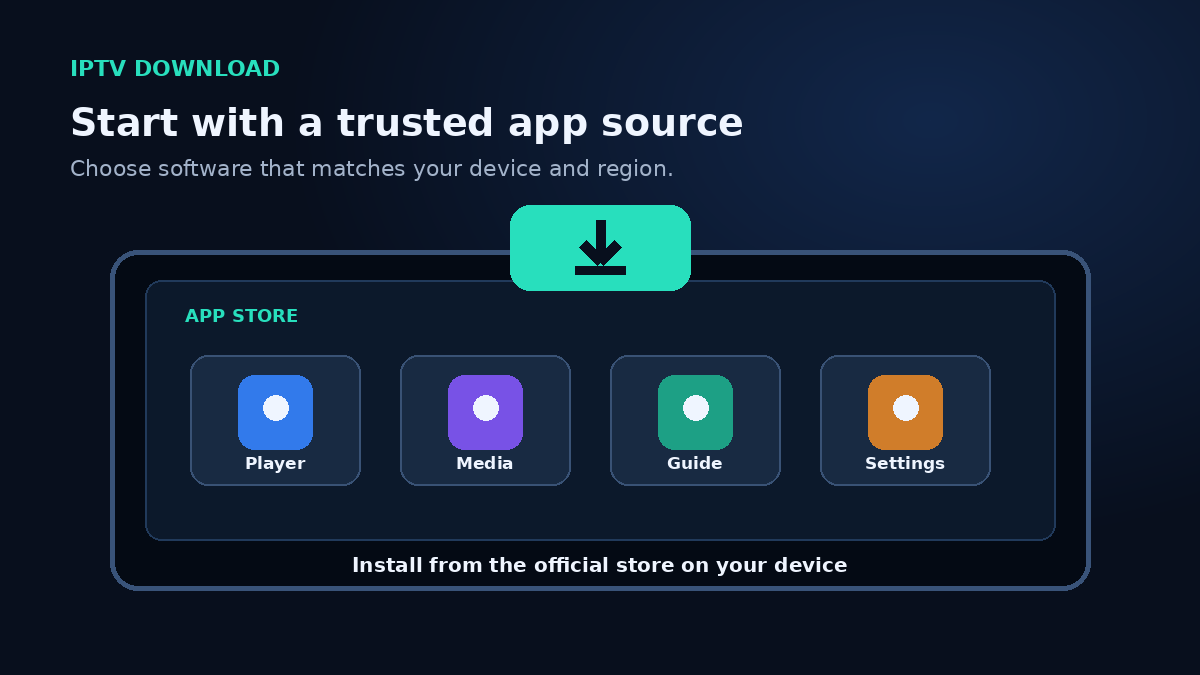
Start with the app store built into your device rather than a random download page.
1. Check Your Device Before Searching
Before you look for an IPTV download, identify the operating system running on your screen. The television brand alone is not enough: two televisions from the same manufacturer can use different software depending on their model year and product range.
Device model
Find the model number in Settings or on the product label. Use it when checking the manufacturer’s compatibility information.
Operating system
Check whether the device uses Android TV, Google TV, Fire TV, Tizen, webOS, tvOS, Roku OS or another platform.
Country and region
App listings can vary by country. A player available in one region may not appear in another.
Software and storage
Install system updates and make sure there is enough free storage before adding a new application.
These checks prevent a common mistake: downloading a file intended for a different operating system and assuming it will work on your television.
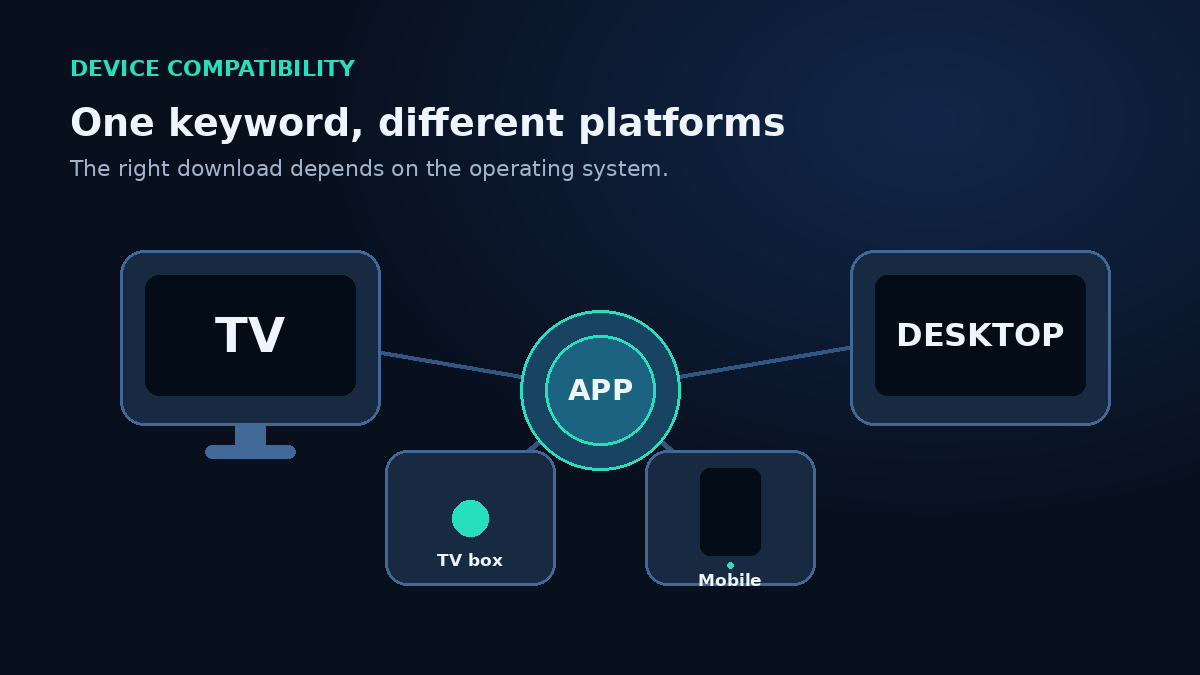
A compatible player must be made for the operating system on the device you plan to use.
2. IPTV Download Sources: Where to Find a Compatible Player
For a safer IPTV download, begin with the official app store supplied with your device. The store normally filters results for supported hardware and provides the publisher name, version information and update history.
| Device platform | Where to look | What to remember |
|---|---|---|
| Android TV / Google TV | Google Play or the Apps/Search area on the TV | Only compatible television apps are shown for supported devices. |
| Amazon Fire TV | Amazon Appstore or the device’s app search | Availability can depend on the Fire TV model and software. |
| Samsung Smart TV | Samsung Apps / Smart Hub | Supported apps vary by model, year and region. |
| LG Smart TV | LG Content Store or the Apps area | Check the webOS version and your television model. |
| Apple TV | Apple App Store | Choose an app specifically listed for tvOS. |
| Roku | Roku Streaming Store | Use apps made available for Roku; other platform files will not install normally. |
| Phone, tablet or computer | The platform’s official app store | Confirm the app is designed for your operating system and screen. |
For model-specific instructions, consult the official Sony guide to installing apps on Google TV and Android TV, Samsung’s Smart TV app information, and Apple’s instructions for apps on TVs and streaming devices. Menu labels may differ by model and software version.
3. Seven Checks for a Safe IPTV Download
Once you find a possible app, take a moment to review its listing. A careful IPTV download begins with verifying the software, not simply selecting the first result. Before confirming an IPTV download, compare the listing with the developer’s own information.
- Confirm the publisher. Check that the developer name matches the publisher’s official website or the information supplied by the device platform.
- Check device compatibility. Read the supported operating systems and minimum software version. Do not assume a phone app will run on a television.
- Review recent updates. Look for a maintained app with a visible version history. An app that has not been updated for a long time may not support newer devices.
- Read the permissions. Be cautious if a simple media player requests access that does not appear necessary for its stated features.
- Understand the price. Check whether the app is free, paid once or subscription-based. Any app fee is separate from a service subscription.
- Read the privacy information. Check what account or device information the developer collects and how to contact the publisher.
- Use the official listing. Avoid unknown download pages, modified packages and files advertised as unlocked or premium versions. If the app is not listed for your device, do not force an incompatible file onto it.
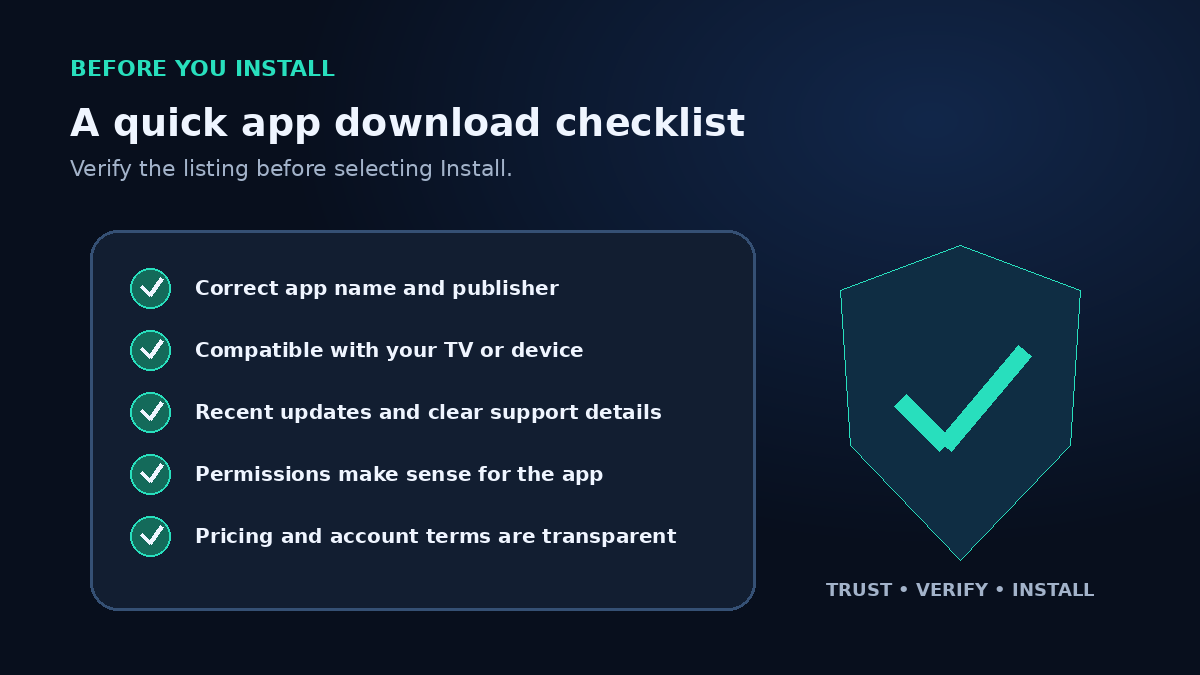
Verify the publisher, compatibility, updates and permissions before installing a player.
Important: A player app and a television service are separate products. Installing a player does not confirm that a service is included, and an app should not be trusted simply because a website promises extra content or premium access at no cost.
4. What If the App Is Not Available?
If a player does not appear in your device’s official store, it may not support that operating system, model or region. It may also have been renamed, temporarily removed or replaced by a newer version. The absence of a listing does not mean your television is broken.
- Check the exact model number and software version.
- Search the device manufacturer’s support pages for app availability.
- Check the developer’s official information to see whether a TV version exists.
- Look for another compatible player in the same official store.
- If you are unsure, ask the device manufacturer or app developer before installing anything else.
A failed IPTV download or a missing store listing is not a reason to use an unofficial mirror site. A download page may display a familiar app name while distributing an altered or outdated file. If you cannot verify the source, leave it alone.
5. What to Do After Installation
When the app has installed successfully, open it and review its welcome screen and settings. Follow the app developer’s instructions and use only account details from a service you have independently checked. Keep private usernames, passwords and account links out of public posts and screenshots.
Installation is only one part of preparing a device. You may still need to adjust language, accessibility, display and network settings. Our separate Setting IPTV guide covers general setup checks, while the IPTV app guide explains how to compare player features.
If you are choosing hardware as well as software, see the streaming device guide before deciding which device fits your needs.
Frequently Asked Questions
Is there one IPTV download that works on every device?
No. App availability depends on the operating system, model, region and developer support. Always choose a version listed for your particular device.
Can I download a phone app onto any Smart TV?
No. A mobile app is not automatically compatible with a television. Check the TV’s own app store and the developer’s supported-device list.
Why can I not find an app in my TV’s store?
The app may not support your model, operating system or region. It may also have been removed or renamed. Check the manufacturer’s and developer’s official information.
Does an IPTV download include a subscription?
No. A player is software. Any separate service, account or subscription has its own provider, terms and pricing.
Should I install a modified app file from a download website?
No. Modified or unofficial files can be outdated or altered. Use your device’s official store and avoid files whose publisher and origin you cannot verify.
What should I check before paying for a player?
Review its supported devices, features, update history, privacy information and payment terms. Confirm whether the price is a one-time purchase or recurring charge.