
Apple TV and IPTV: 7 Essential Tips for a Better Viewing Experience
A practical guide to Apple TV and IPTV compatibility, player features, privacy, connection quality and setup checks.
Apple TV and IPTV can be a useful combination for viewers who want to access compatible internet-delivered television on a larger screen. The key is understanding what the Apple TV device does, what an IPTV player does, and where the content source comes from. These are separate parts of the setup, and confusing them can lead to poor compatibility or unrealistic expectations.
This guide explains the main checks before installing an app, how to assess player features, and how to improve everyday viewing without assuming that every app includes a television service.
1. How Apple TV and IPTV work together
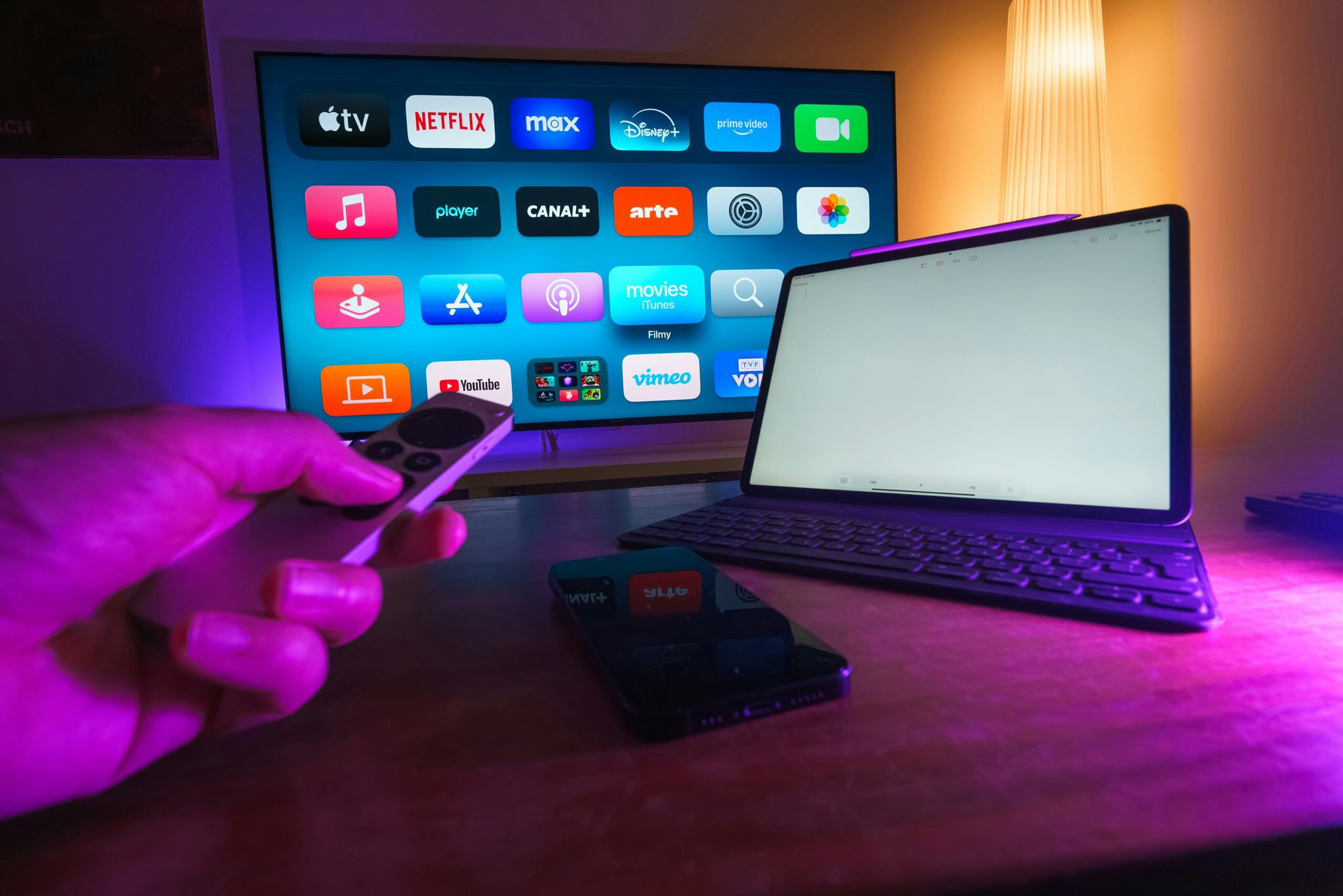
IPTV means television delivered using internet protocol networks. Apple TV is a streaming device that runs tvOS and provides access to compatible applications through its App Store. An IPTV player is an app that can organise and play compatible streams; it is not automatically the provider of those streams.
In a typical setup, a viewer installs a compatible player, signs in or imports a source supplied by a service, and uses the remote to browse available content. The app, the source and the device each have separate capabilities and limitations. Understanding these roles is the first step when comparing Apple TV and IPTV options.

2. Check app and device compatibility first
Do not assume that an app available on an iPhone or iPad is also available on Apple TV. Developers can publish different versions for different operating systems, and some features may be limited by the device, software version or region.
- Confirm that the app listing explicitly supports Apple TV or tvOS.
- Check the minimum tvOS version and available storage.
- Read the developer name, update history and privacy disclosures.
- Confirm that the app is available in your App Store region.
- Check whether the app is designed for remote navigation rather than touch controls.
Apple explains how to browse and install applications through the Apple TV 4K App Store guide. You can also review Apple’s Apple TV software update information to understand why keeping tvOS current matters.
3. Choose a player by useful features
The best player is not necessarily the one with the longest feature list. Focus on the features that make sense for your device and viewing habits.
| Feature | Why it matters | What to check |
|---|---|---|
| Remote-friendly navigation | Makes browsing comfortable on a television. | Clear menus, readable text and responsive controls. |
| Playlist compatibility | Allows the app to read a supported content source. | Supported formats and import methods. |
| Programme guide | Helps organise scheduled content. | Whether guide data is supported and supplied. |
| Playback controls | Improves everyday usability. | Subtitles, audio selection and seeking where available. |
| Updates and privacy | Helps keep the app maintained and transparent. | Recent updates and a clear privacy policy. |
If you are still comparing software, our guide to choosing an IPTV app explains general player features and setup considerations.
4. Understand the content source
One of the most important points about Apple TV and IPTV is that a player and a content service are not the same thing. Many players provide playback and organisation tools but do not include programmes or subscriptions. A separate source may be required, depending on the app.
Before entering account details, confirm who operates the service, what the subscription includes, which devices are supported, and how billing and cancellation work. A large catalogue claim does not prove that every item is available, current or included in your plan.
5. Improve connection quality
Playback quality depends on more than the app. Your broadband connection, Wi-Fi coverage, router, device performance and the content source all influence the result. If playback becomes unstable, test the network before assuming that the player is at fault.
- Place the router in an open, central location where practical.
- Use a wired Ethernet connection if your setup supports it.
- Pause large downloads or other high-bandwidth activities while testing.
- Restart the router and streaming device if the connection becomes unusually slow.
- Keep tvOS and the installed app up to date.
For help selecting a device for your room and connection, see our streaming device guide. These practical checks can help you get more from an Apple TV and IPTV setup.
6. Review privacy and account security
Check what information an app collects and whether it asks for permissions that make sense for its function. Avoid entering payment details into an unfamiliar app or sending account credentials through public comments or unverified messages.
Use a unique password for important accounts, enable available account security features, and review subscription renewal terms. If a service does not clearly identify its operator or provide understandable terms, pause before sharing personal information.
7. A simple setup checklist
- Identify your Apple TV model and current tvOS version.
- Open the official App Store and check the app’s device support.
- Read the app description, developer details and privacy information.
- Confirm that your content source and app are compatible.
- Install the player and follow its official on-screen setup instructions.
- Test playback, guide information and remote navigation.
- Review the service’s plan, renewal and cancellation conditions.
If you are comparing plan types as well as device compatibility, review the information on our IPTV Subscriptions page before making a decision.
When comparing Apple TV and IPTV players, check the exact tvOS support and app version rather than assuming every mobile app has a television version.
Frequently asked questions
Does Apple TV include IPTV channels automatically?
No. A player app may only provide playback tools. Content availability depends on a separate source and its plan.
Can every IPTV app run on Apple TV?
No. Check the app listing for explicit tvOS or Apple TV support. Availability can differ from iPhone and iPad versions.
Is Apple TV the same as an IPTV service?
No. Apple TV is a device and platform. An IPTV service supplies internet-delivered television content, while a player app may simply play compatible sources.
What should I do if playback buffers?
Check Wi-Fi coverage, router performance, other network activity, app updates and the service itself. A wired connection can help where supported.
Choose your setup carefully
Compare device support, app features and service terms before setting up internet television. A compatible player and a reliable connection are more useful than a long list of unverified promises.
Contact our team